> For the complete documentation index, see [llms.txt](https://luminor.gitbook.io/luminor-guides/llms.txt). Markdown versions of documentation pages are available by appending `.md` to page URLs; this page is available as [Markdown](https://luminor.gitbook.io/luminor-guides/luminor-user-guides/how-to-create-a-profile-on-the-platform.md).
# How to Create a Profile on the Platform
Read the detailed instructions to create an account for purchasing Luminor jewelry.
***
1\. Go to the website .
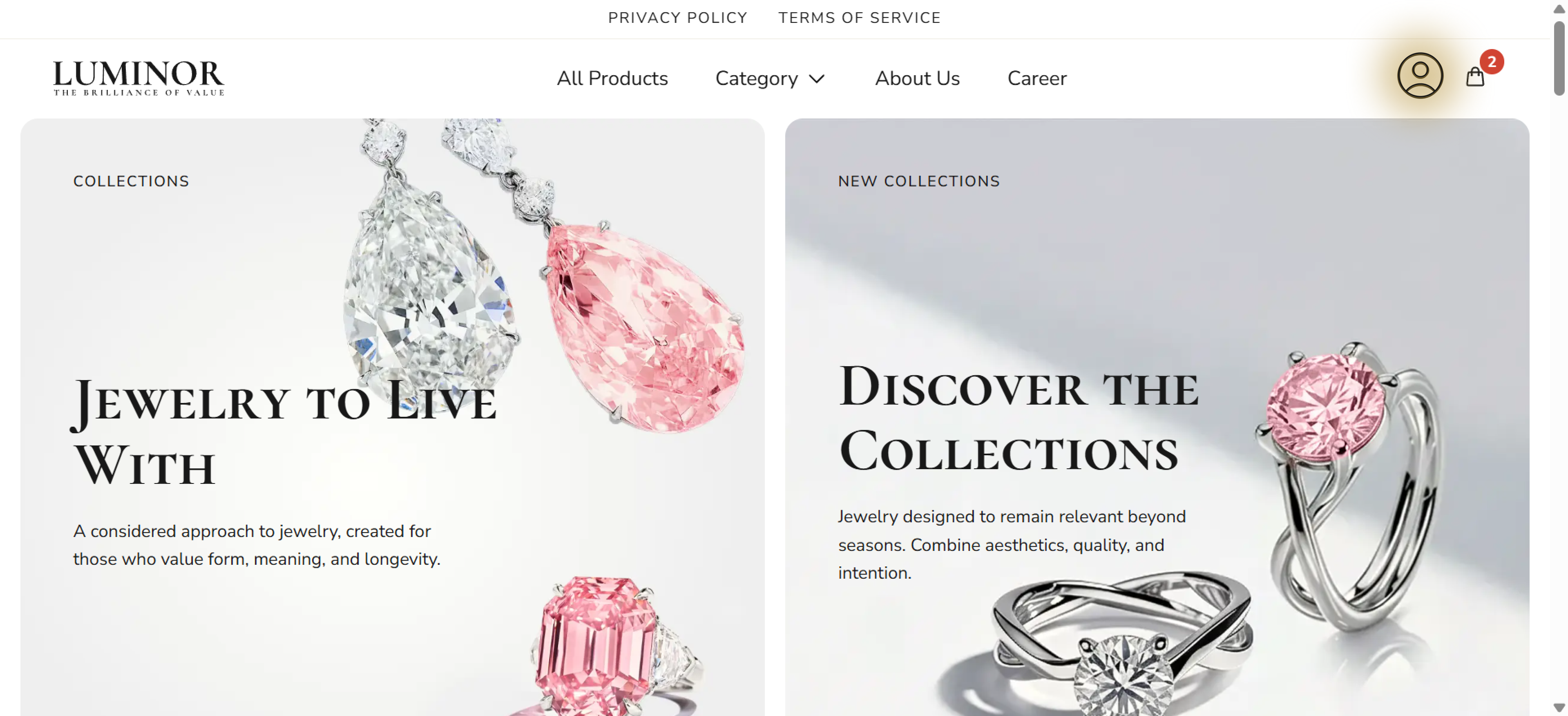
2\. Tap the profile icon in the upper right corner of the screen.
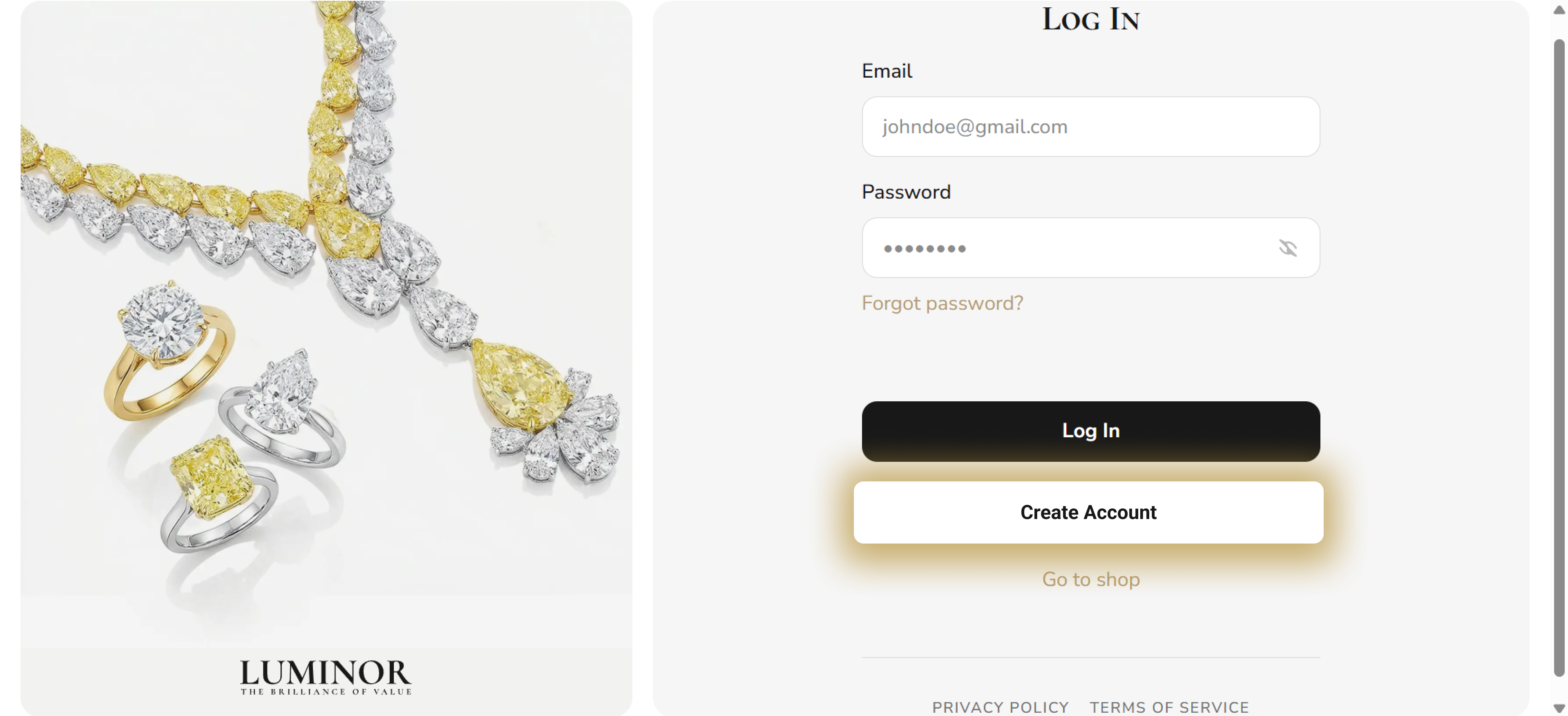
3\. Click the “Create Account” button to create a profile.
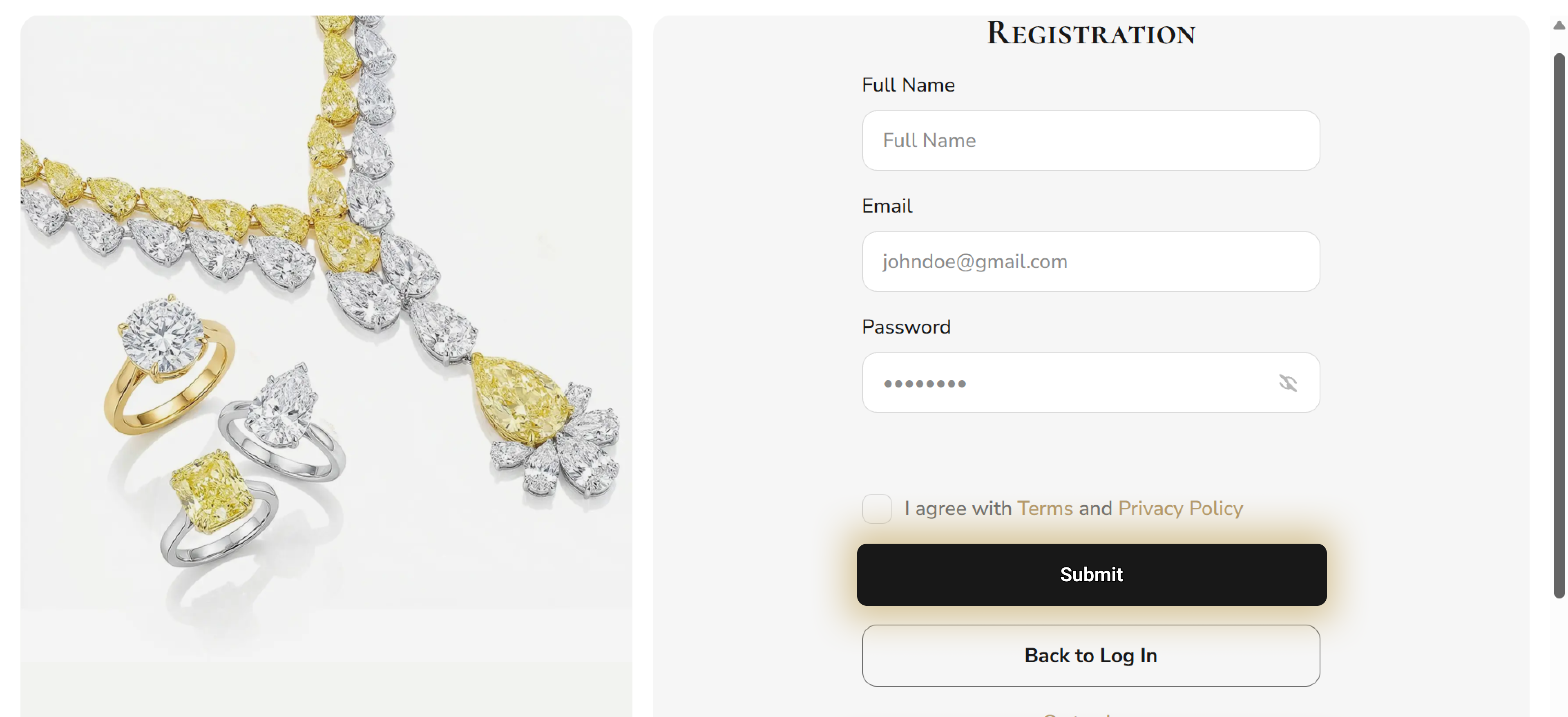
4\. Fill in the required fields, read and agree to the Terms & Privacy Policy, then click the “Submit” button.
5\. Enter the Verification Code that was sent to the email address you specified.
{% hint style="warning" %}
If you do not receive the Verification Code within a minute, check your “Spam” folder.
If there is no Verification Code email either, please return to the website and click on “Resending.”
{% endhint %}
Congratulations, you have successfully created an account on the platform. Now you can purchase Luminor jewelry and track your orders.